How to use ChatGPT for daily work
ChatGPT is a general-purpose writing and reasoning assistant. Used carefully, it can speed up everyday work: drafting an email, turning rough notes into a clear outline, explaining a topic in simpler language, or suggesting a checklist before a meeting. It does not replace your judgement. It also does not know your private files, your office rules, or the latest fact unless you provide that context or you check the result yourself.
This article is a practical starting point for office, study and personal admin work. It avoids shortcuts that put private data at risk, and it does not promise that a tool will replace a job or produce income. If you want a fuller walk-through of prompts and workflows, ChatGPT Mastery 2027 on this site covers everyday use in more depth.
What ChatGPT is good at
ChatGPT is strongest when the task is language-heavy and the cost of a first draft being imperfect is low. Typical fits include:
- Rewriting a messy paragraph so it is shorter and easier to read.
- Turning bullet points into a polite email, a meeting agenda, or a one-page summary.
- Asking for a list of questions you should consider before a decision, then editing that list.
- Explaining a technical term in plain language, then checking the explanation against a trusted source.
- Comparing two options you already understand, as a way to spot points you forgot to mention.
It is weaker when the answer must be exact: legal wording, tax calculations, medical advice, live prices, or anything that depends on a document it cannot see. In those cases, use it only to organise your thinking, then verify the facts in the official document or with a qualified person.
Give it enough context
A vague prompt such as “write a better email” produces a generic result. A useful prompt usually includes four things: the audience, the goal, the tone, and any hard limits. For example: “Draft a short email to a colleague who missed last week’s project meeting. The goal is to share three decisions and ask them to confirm two action items by Friday. Keep it under 150 words and use plain, professional language. Here are my notes: …”
Paste only the information the task needs. If a document is long, paste the relevant section or write a short brief yourself. You can also ask ChatGPT to interview you first: “Ask me five questions so you can draft this properly, then wait for my answers.” That often produces a better draft than one long vague request.
Keep private information out of the chat
Do not paste passwords, one-time codes, bank or card details, Aadhaar or PAN numbers, payroll files, customer lists, unpublished financial results, or medical records. If your workplace has a policy on AI tools, follow it. Many organisations restrict which services may be used with internal data. When in doubt, replace names and figures with placeholders (“Client A”, “amount X”) and put the real values back in yourself.
Remember that a chat can be stored by the service, and that you might later paste the same thread into an email. Treat every prompt as if it could be read by someone else.
Review every output
Language models can sound confident while being wrong. They may invent a citation, a date, a law, or a person. Before you send or publish anything, check names, numbers, dates and claims. If the draft includes a policy or a technical step, confirm it against the original manual or the official website. Ask the tool to list any assumptions it made, then decide which of those assumptions are true.
A simple review habit helps: read the draft once for facts, once for tone, and once for anything you would not want your manager or a customer to see. If you asked for a translation, have a fluent speaker review important text. If you asked for a summary, open the source and confirm that nothing important was dropped or exaggerated.
A simple daily pattern
You do not need a complicated system. One reliable pattern looks like this. First, state the task and the reader. Second, paste or summarise the raw material. Third, ask for a short draft in a format you can use (email, bullets, table, or checklist). Fourth, ask one improvement question, such as “cut 30% without losing the request” or “make the next steps clearer.” Fifth, edit the result in your own words and verify the facts.
For recurring work, save the prompts that already work for you in a note on your computer. You can reuse the same structure for weekly status updates, class notes, or customer replies, changing only the details. If you also use workplace assistants such as Microsoft Copilot inside Word or Outlook, the same rule applies: the assistant drafts, you decide. Microsoft Copilot Mastery 2027 is a useful companion if your work already lives in Microsoft 365. For research questions where you want links to check, Perplexity Mastery 2027 focuses on question-and-source workflows.
Limits worth accepting
ChatGPT does not automatically know what happened this morning unless the product’s browsing or file tools are in use, and even then the result can be incomplete. It should not be your only calculator for money, marks or medicine. It should not be used to write something you will later present as fully your own academic work if that breaks your institution’s rules — check those rules first.
Used as a drafting partner, with private data kept out and with a human review at the end, ChatGPT can save time on ordinary writing tasks. The quality of the result still depends on the quality of the brief you give it and on the care you take before you hit send.
Related books on this site
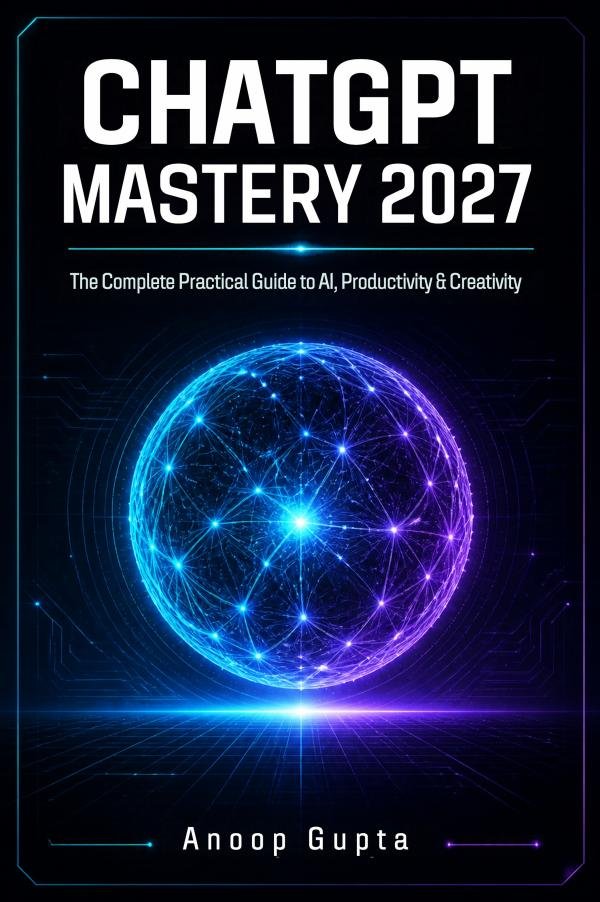
ChatGPT Mastery 2027
$3.99 ₹199
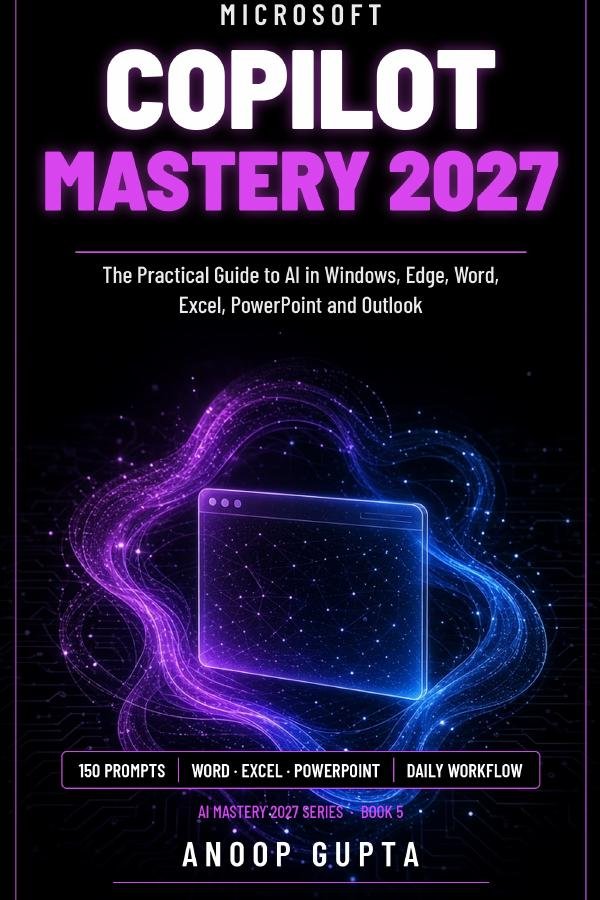
Microsoft Copilot Mastery 2027
$3.99 ₹199
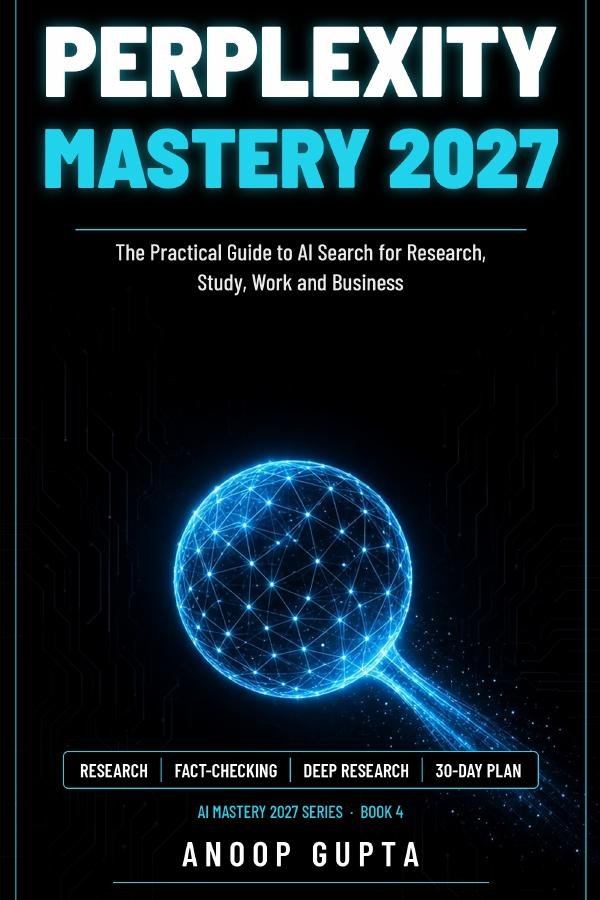
Perplexity Mastery 2027
$3.99 ₹199